Tutorial
Learn Wake Word
A wake word is a phrase that triggers ESPVoice to wake up and start listening for the user’s voice command. When ESPVoice is powered up for the first time, the wake word learning process will begin. Users will be instructed to speak the wake word two times to complete the learning process and activate the device.
To manually retrain or change the wake word, follow these steps:
Click on “ESPVoice-XXXXXX” in the ESPHome integration.
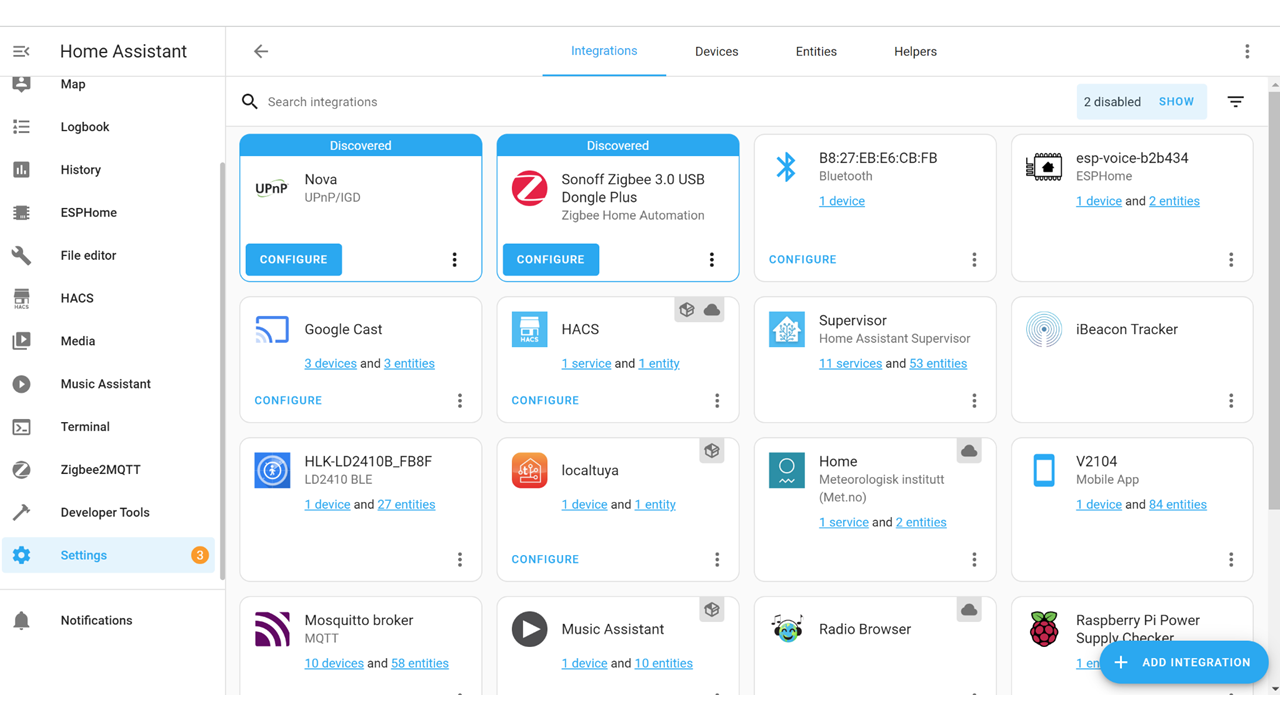
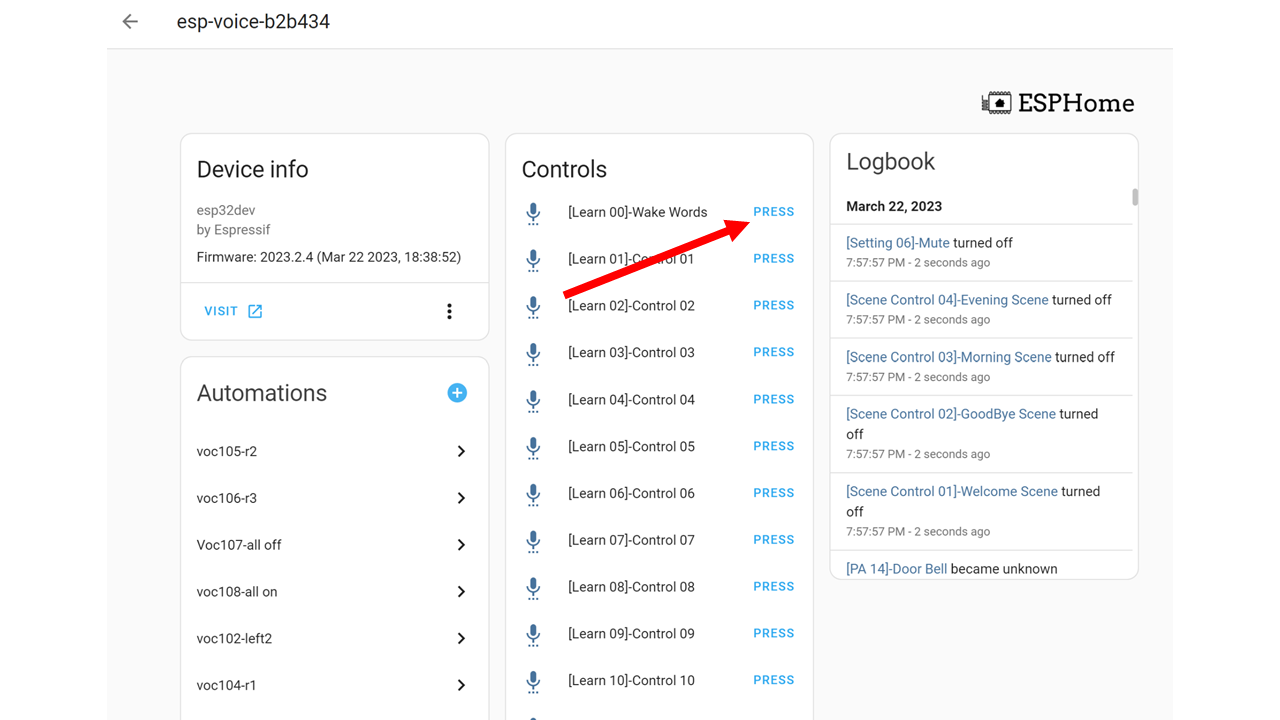
Select “[Learn Wake Words]” under “Device” > “Control” and follow the voice instructions from ESPVoice to learn the wake words.
You will be prompted to say the wake word twice. We recommend using a wake word with more than four syllables for better recognition accuracy, with a maximum allowable length of 1.5 seconds. Do not pause when saying the wake word.
If ESPVoice fails to recognize the wake word, for example, if it fails to match the second voice input with the first voice input, it will prompt you for another voice input. The learning process is complete once ESPVoice has recorded two successful matches.
If there are more than three unsuccessful matches, ESPVoice will exit the learning process. You can restart the learning process by pressing the “[Learn] Wake Word” button again.
Once the learning process is complete, ESPVoice will respond with “I’m here” upon detecting the trained wake word. ESPVoice will also send a “900” text to Home Assistant.
Learn Voice Command
ESPVoice has the ability to recognize 12 customizable action voice commands, as well as a “call-for-emergency” voice command. Users can initiate the learning process for each customizable voice command by pressing the “Learning Voice Command” buttons within the Home Assistant/ESPHome interface. During the learning process, users will be prompted to say the command words two times.
Users are free to assign any command to any of the voice command slots. For example, “Voice Command 01” can be assigned to “Switch on Kitchen Lights”, while “Voice Command 02” can be assigned to “Turn off living room heaters”, and so on.
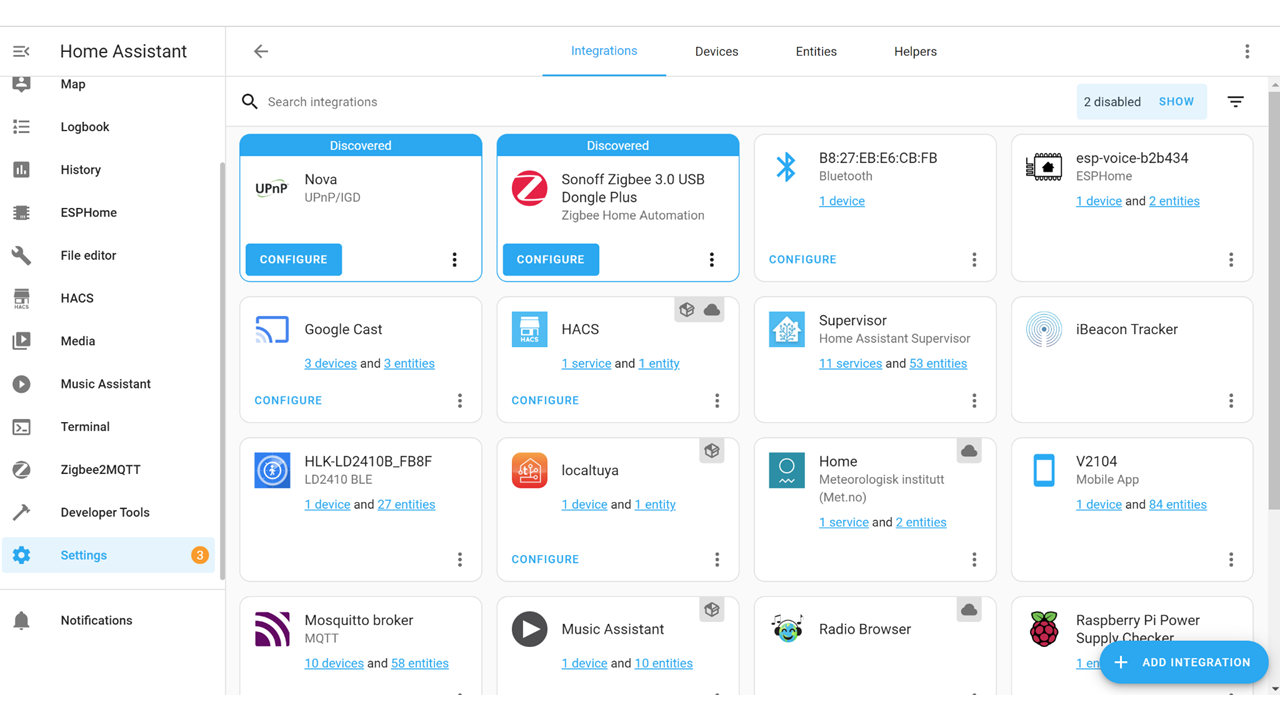
Click on “ESPVoice” under ESPHome integration
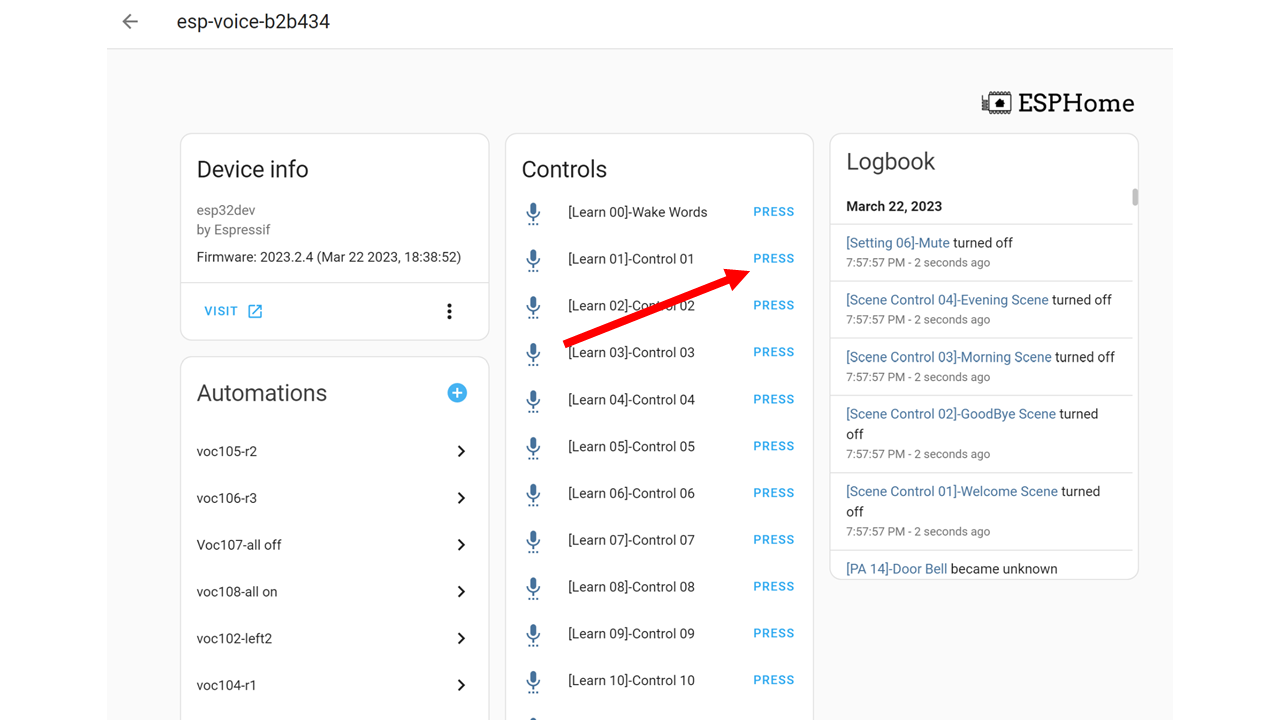
Select “[Learn Control 01]” under “Device” > “Control” and follow the voice instructions provided by ESPVoice to learn the voice control command.
To complete the learning process, you must say the same voice command words two times in a quiet environment. We recommend using voice commands with more than four syllables, with a maximum allowable length of 1.5 seconds. Do not pause when saying the voice command.
If ESPVoice fails to recognize the voice command, for example, if it fails to match the second voice input with the first voice input, it will prompt you for another voice input. The learning process is complete once ESPVoice has recorded two successful matches.
If there are more than three unsuccessful matches, ESPVoice will exit the learning process. You can restart the learning process by pressing the “[Learn] Control 01” button again.
Once the learning process is complete, try saying the wake word you trained earlier. After hearing the “I’m Here” response from ESPVoice, say the voice command you trained ESPVoice to execute the command.
If the recognition is successful, ESPVoice will respond with “Okay”, and it will also send a “101” text (for Control 01) to Home Assistant.
Calling for Emergency Help
Public Announcement System
Scene Confirmation Setup
Resetting ESPVoice

The reset button allows the user to reset ESPVoice to factory default. Resetting ESPVoice will clear all pre-trained voice command. This is useful when you are setting up ESPVoice in a new environment. In order to prevent accidental resetting of the device, user will be prompt to press the reset button three times.
Checking firmware version
Press “Firmware version” button to retrieve the firmware version of ESPVoice. The firmware version will be shown in the ESPVoice Text Sensor
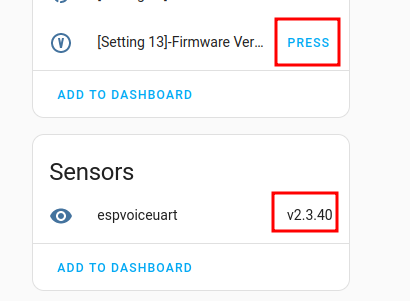
See ESPVoice Firmware Versions for complete list of version info.